


How to Bring Your Own API Keys to MySamantha
 Vithiya•May 5, 2026
Introduction
This post will show you how to use MySamantha's AI features by bringing your own API key from third party providers.
What is BYOK?
"Bring Your Own Key" instead of paying MySamantha a flat fee that gets converted into model usage, you connect your own provider key and the bills go directly to that provider.
You pay only for what you actually use, at the provider's raw price.
Google AI Studio is useful here because you can create your API key directly, drop it into Samantha, and start using it right away.
Step 1: Get a key from Google AI Studio
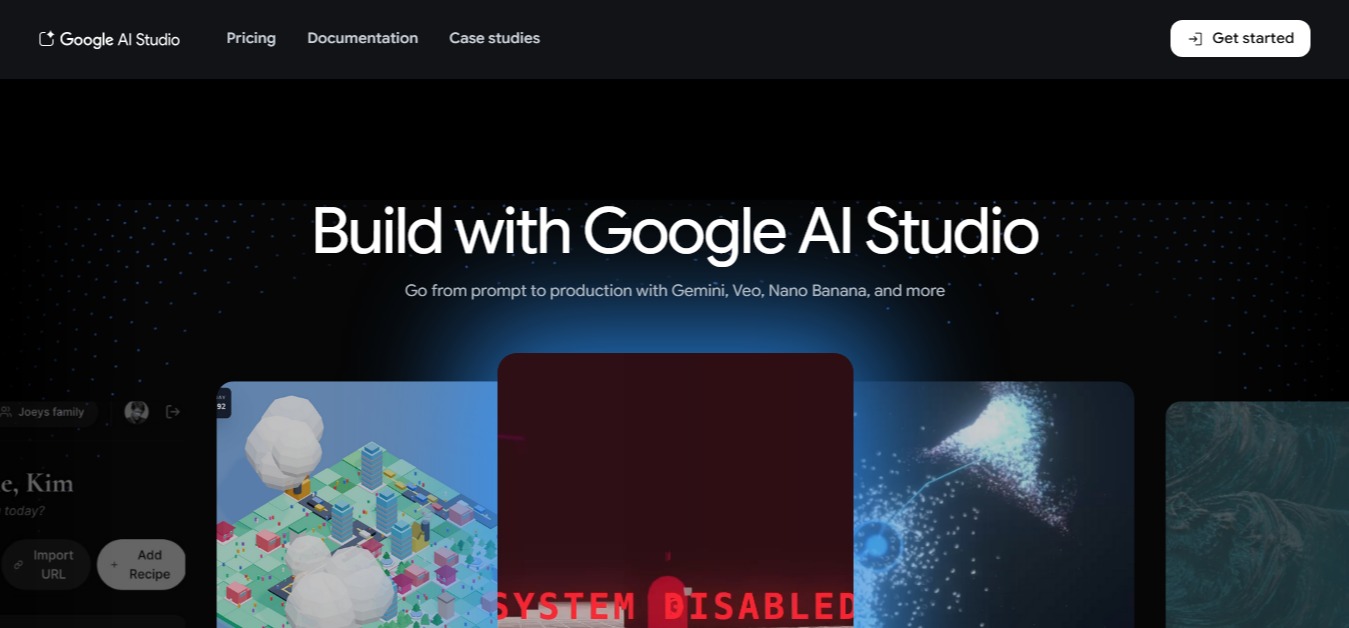
Head to Google AI Studio and sign up.
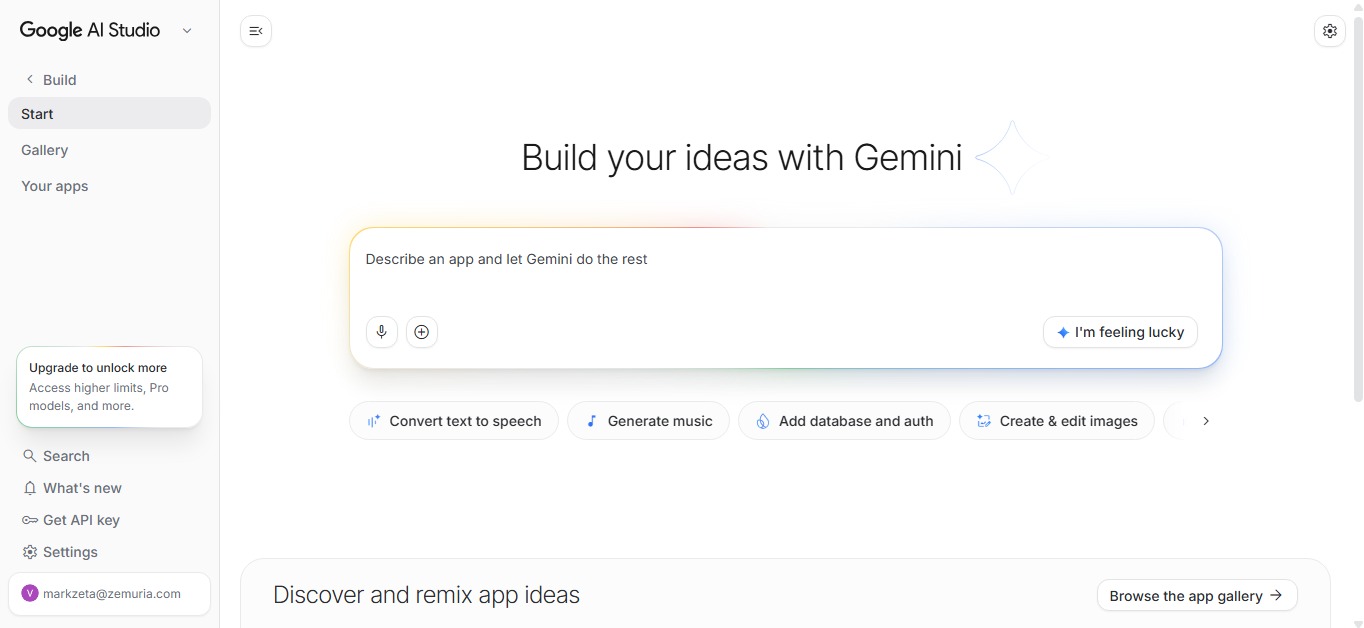
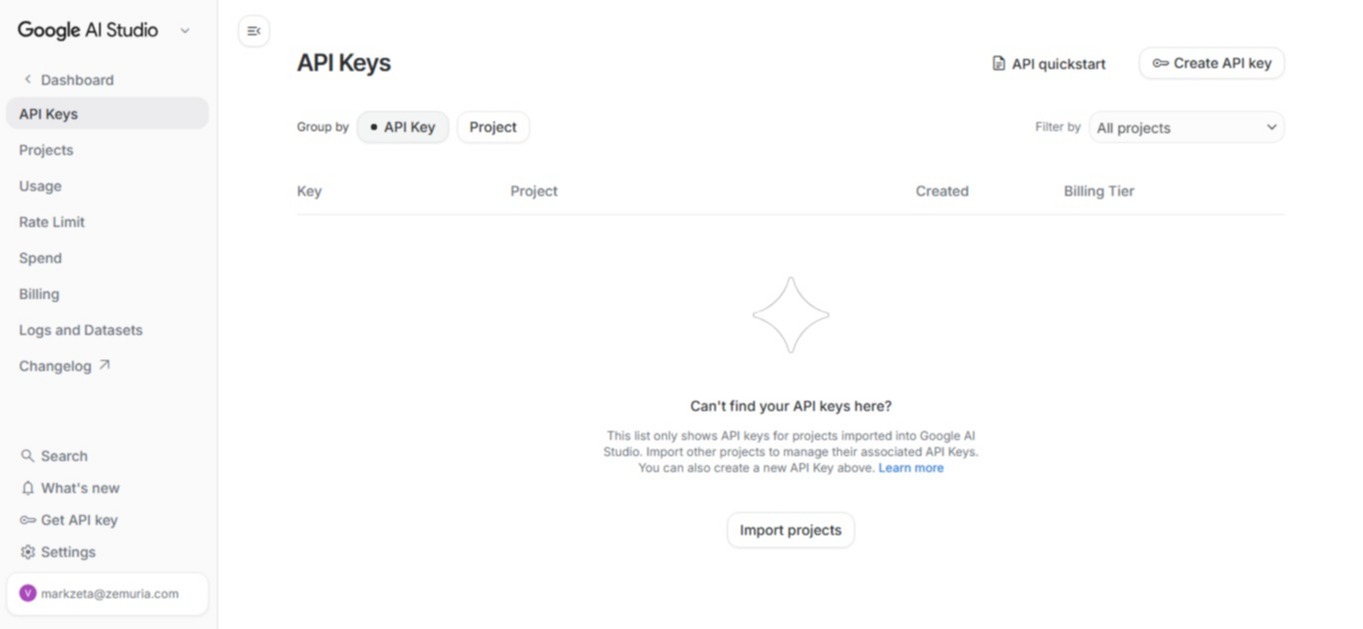
Once you're in, click Get API Key and click Create API Key.
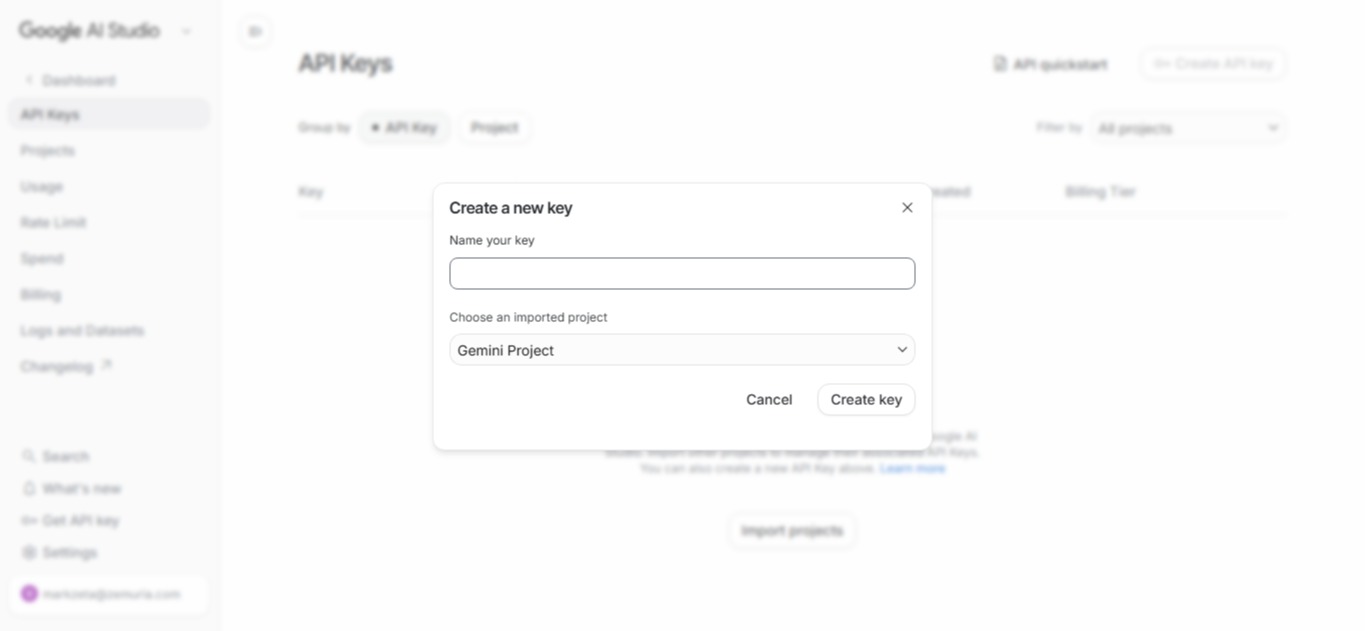
Give it a name. If you already have a project imported, pick it. If not, just create one.
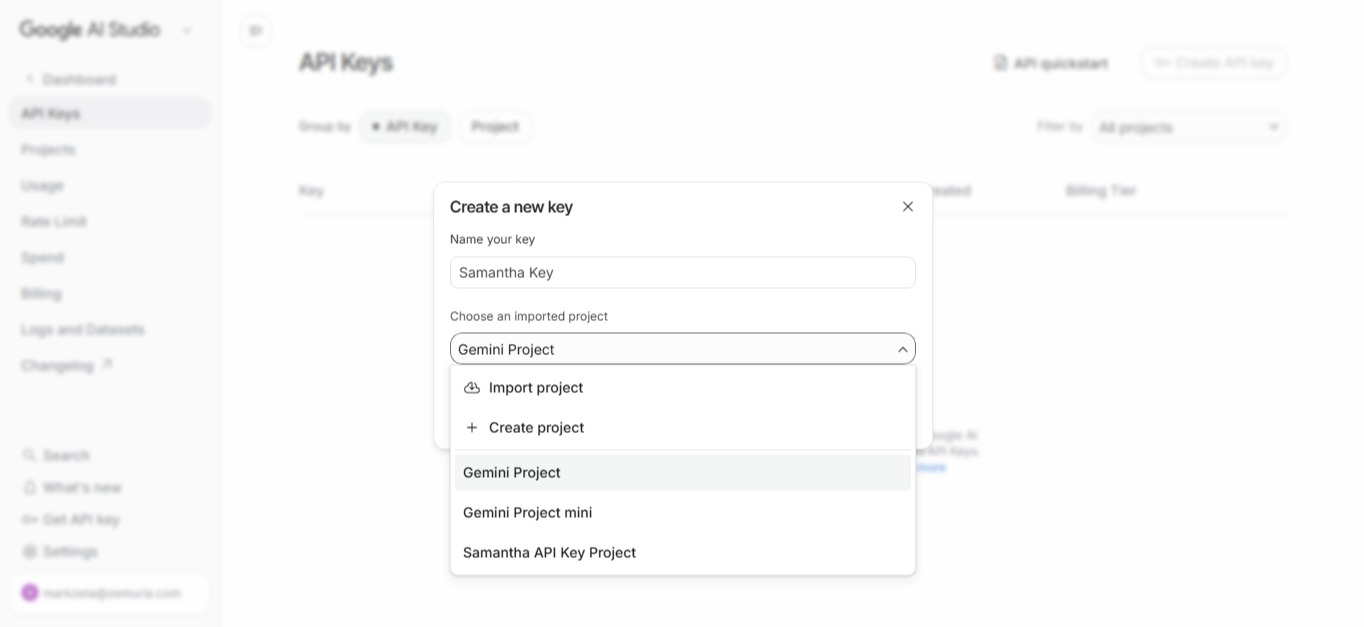
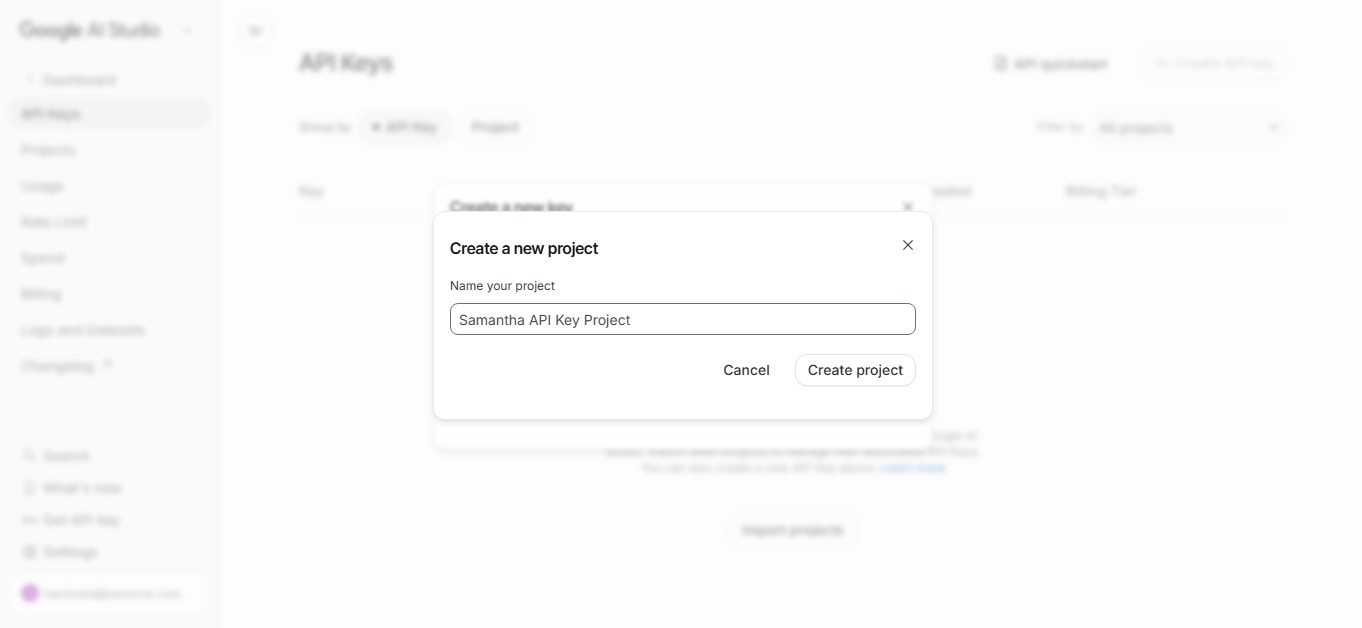
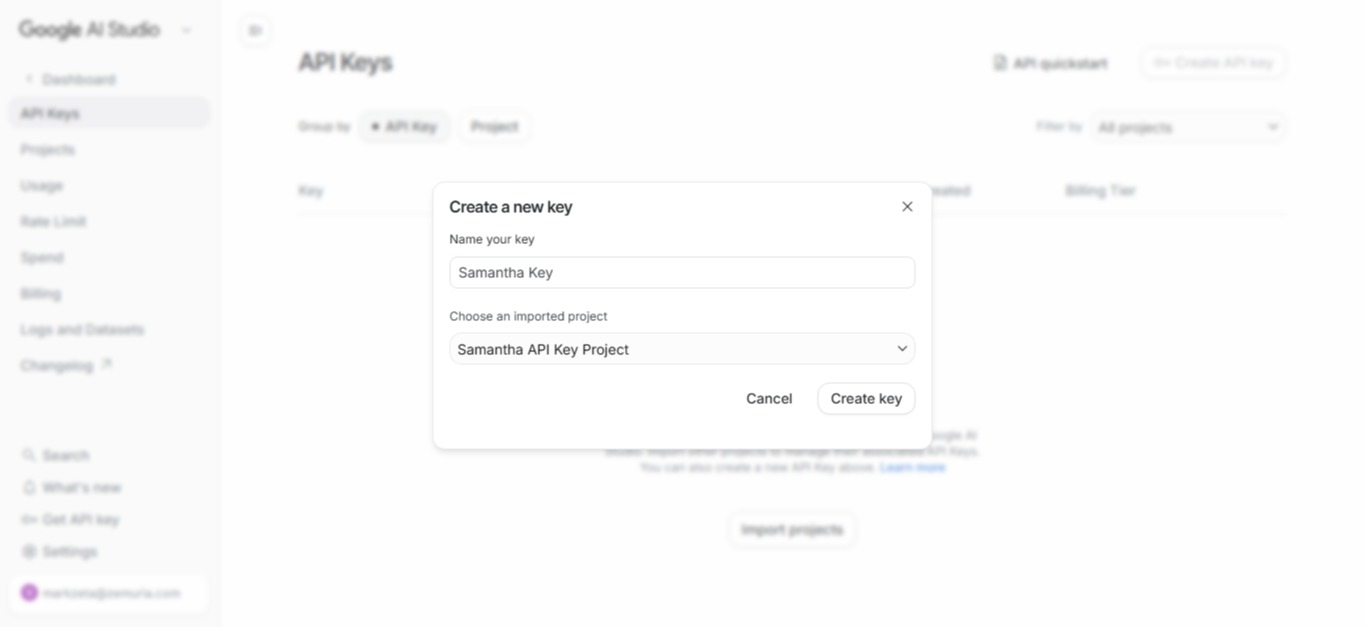
Hit Create and copy the key.
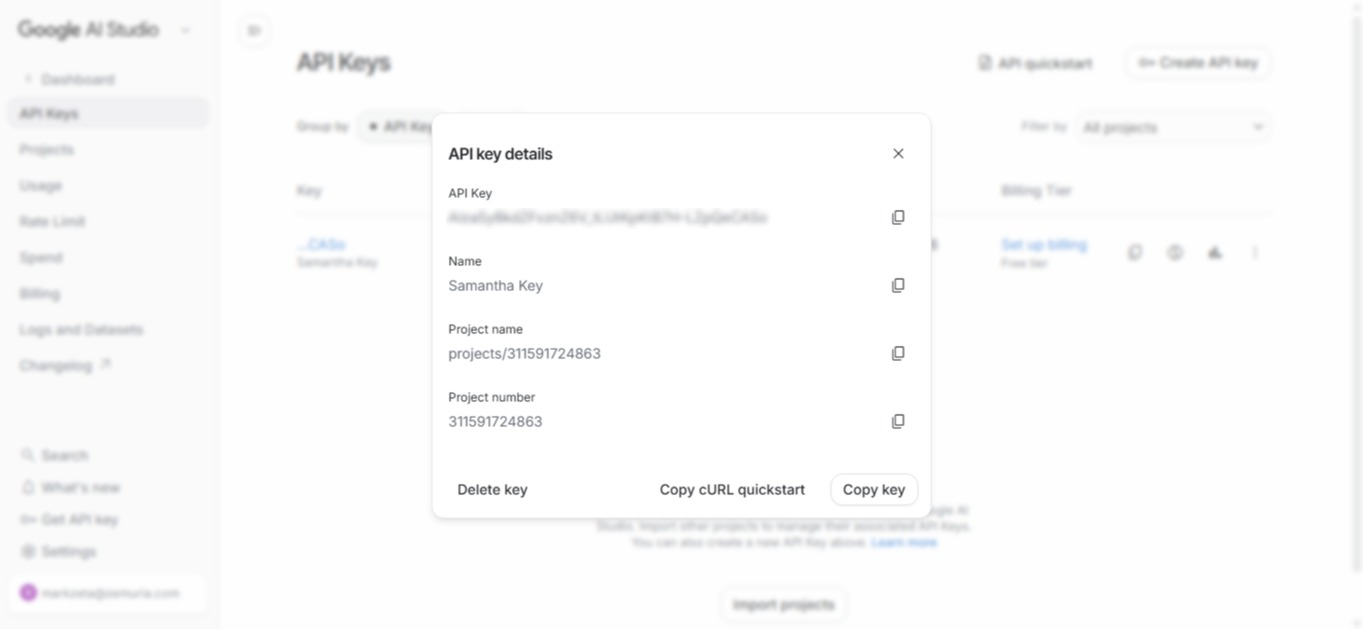
So is that it for Google AI Studio? Yes. Just create the key, copy it, and move to the next step.
Step 2: Sign in to MySamantha
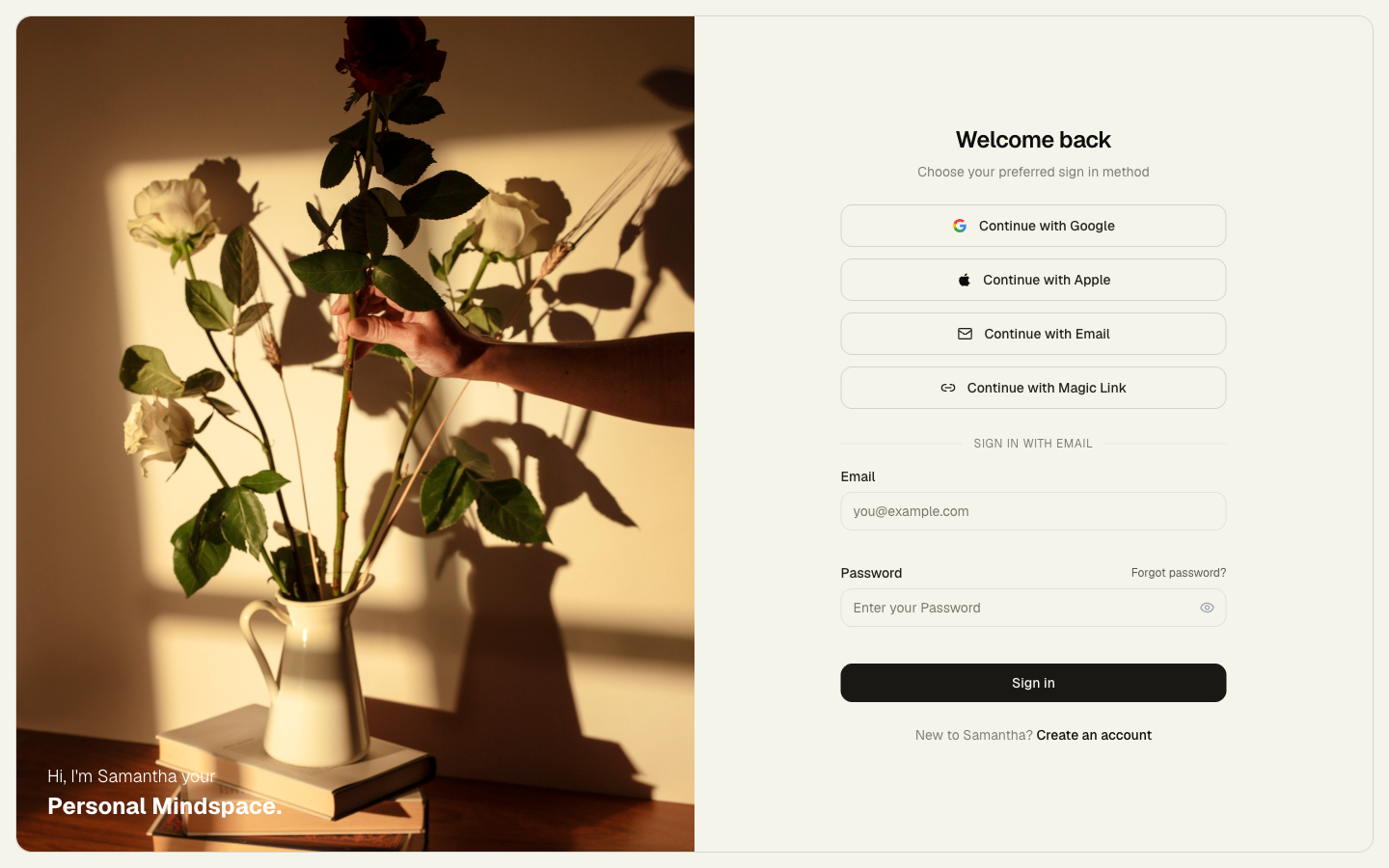
Open app.mysamantha.ai and sign in.
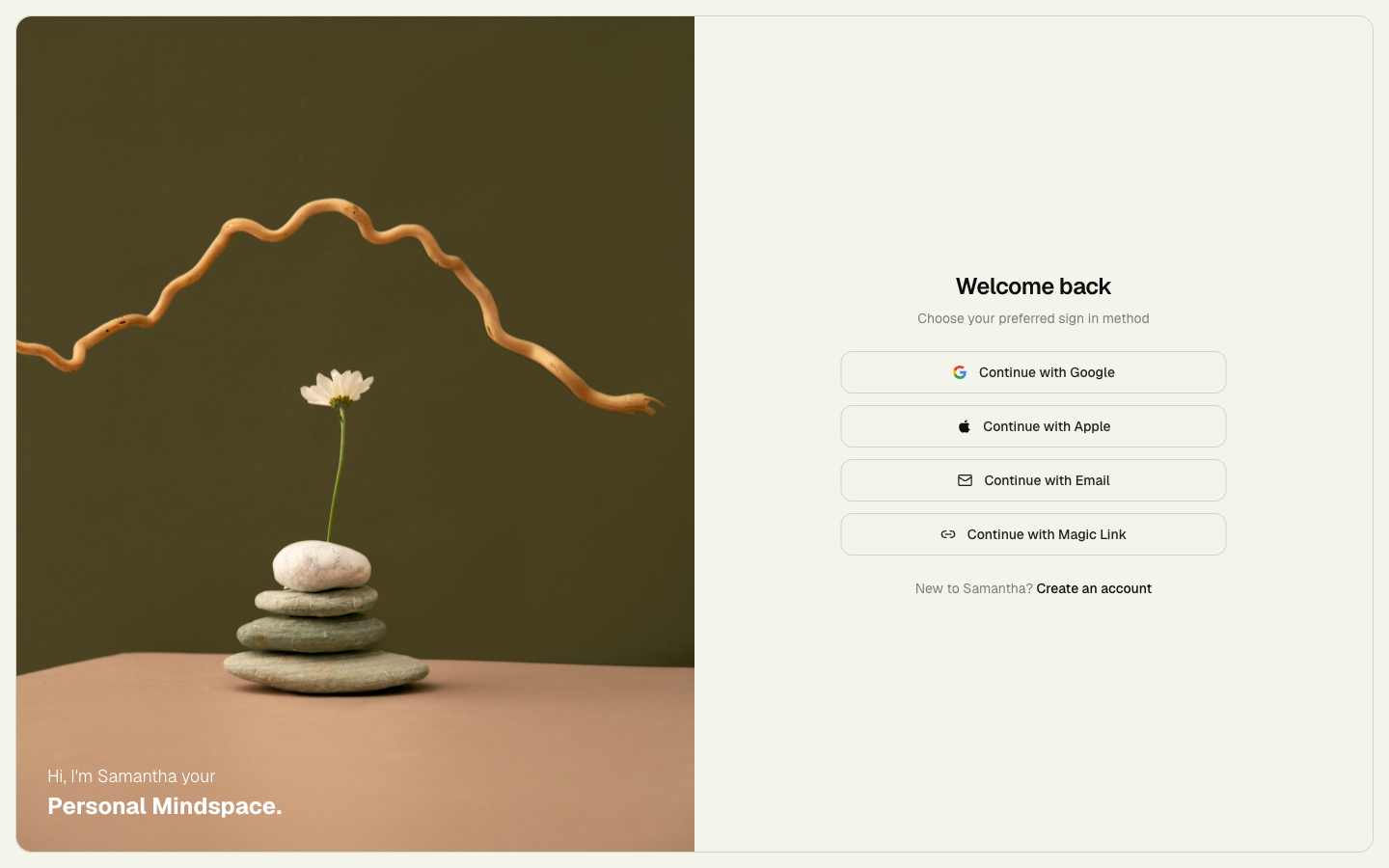
Email, Google, Apple, or magic link same deal.
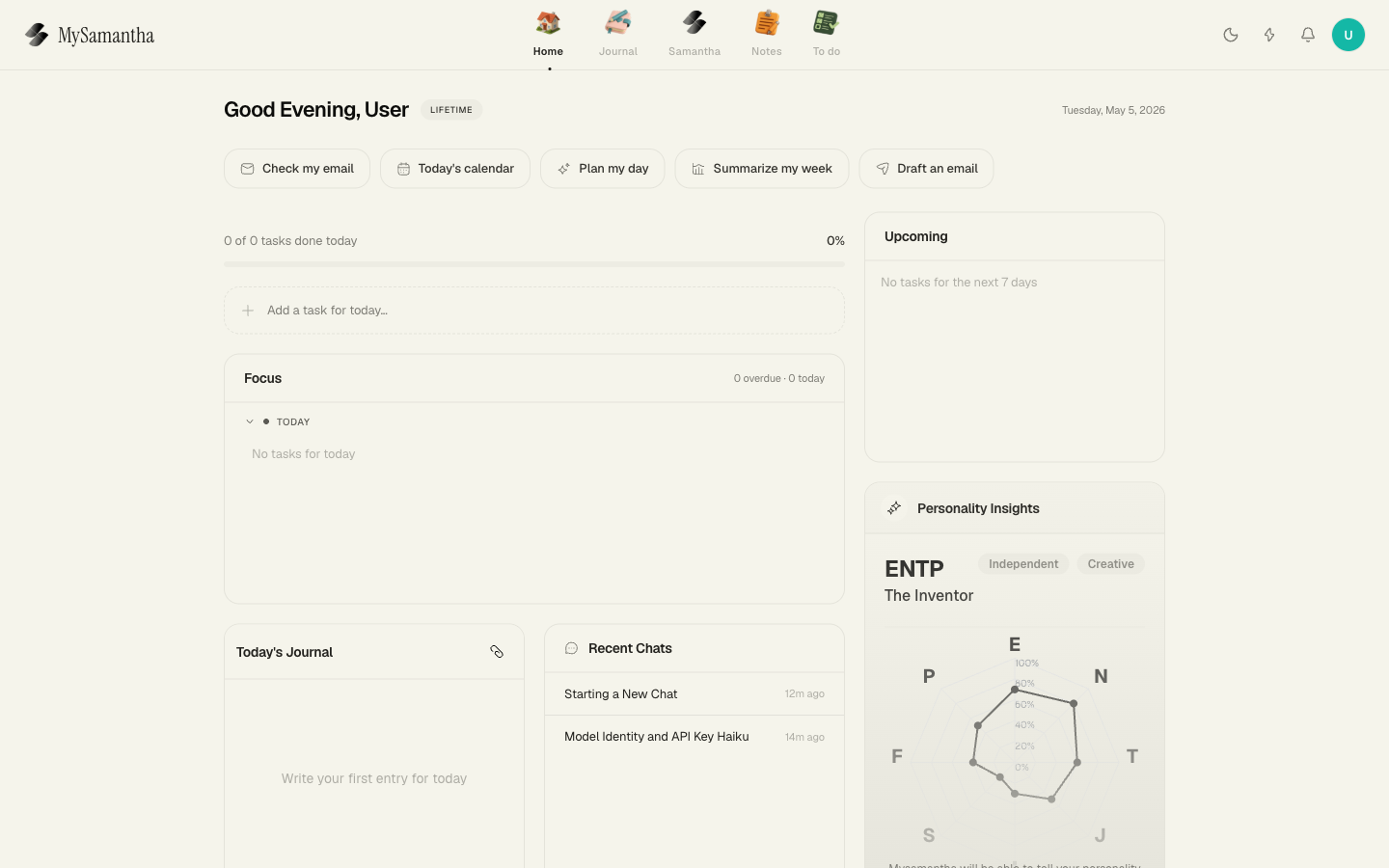
You land on the dashboard.
Step 3: Drop the key into MySamantha
Open Settings → API Keys (BYOK).
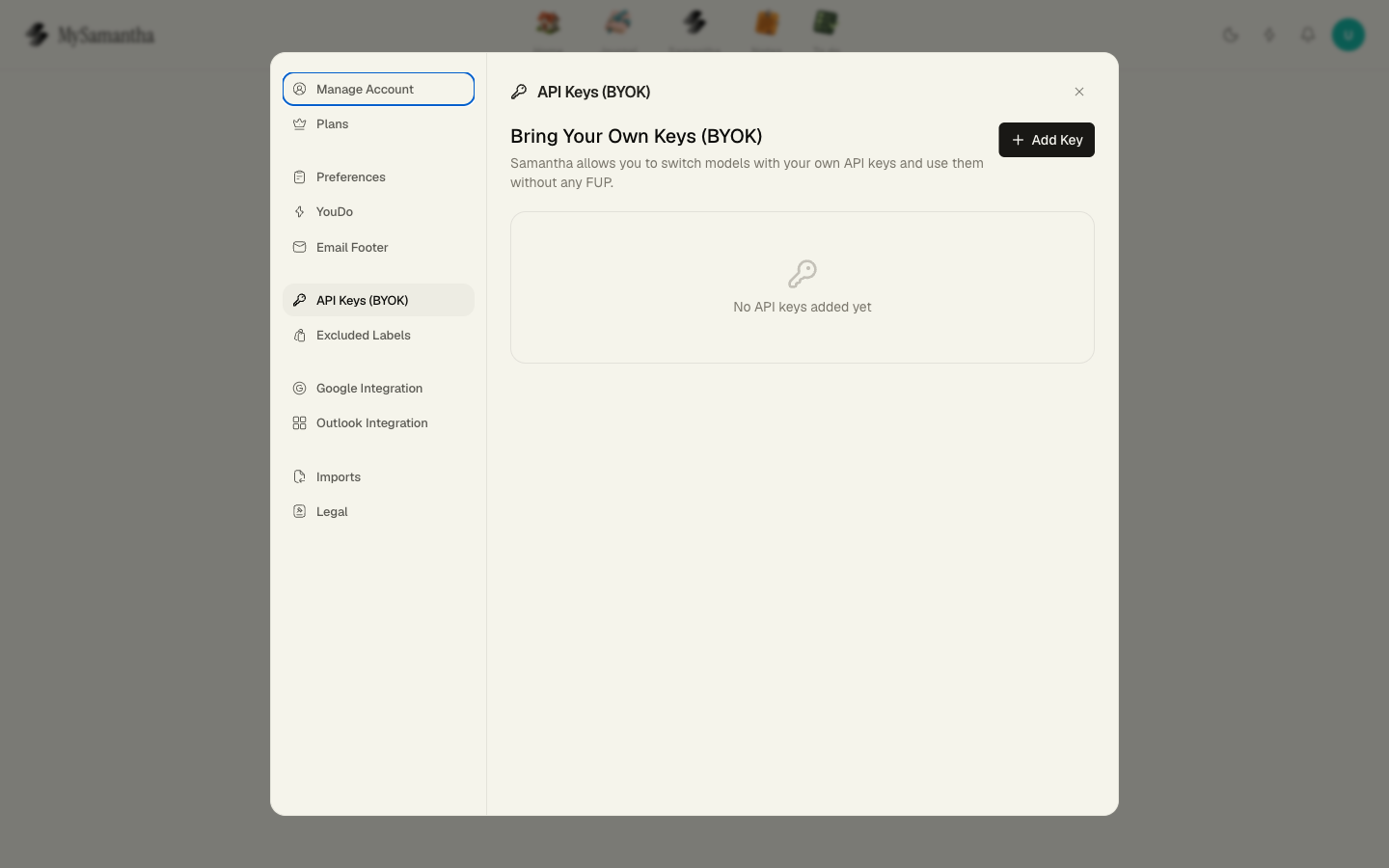
Hit + Add Key and pick Google from the dropdown.
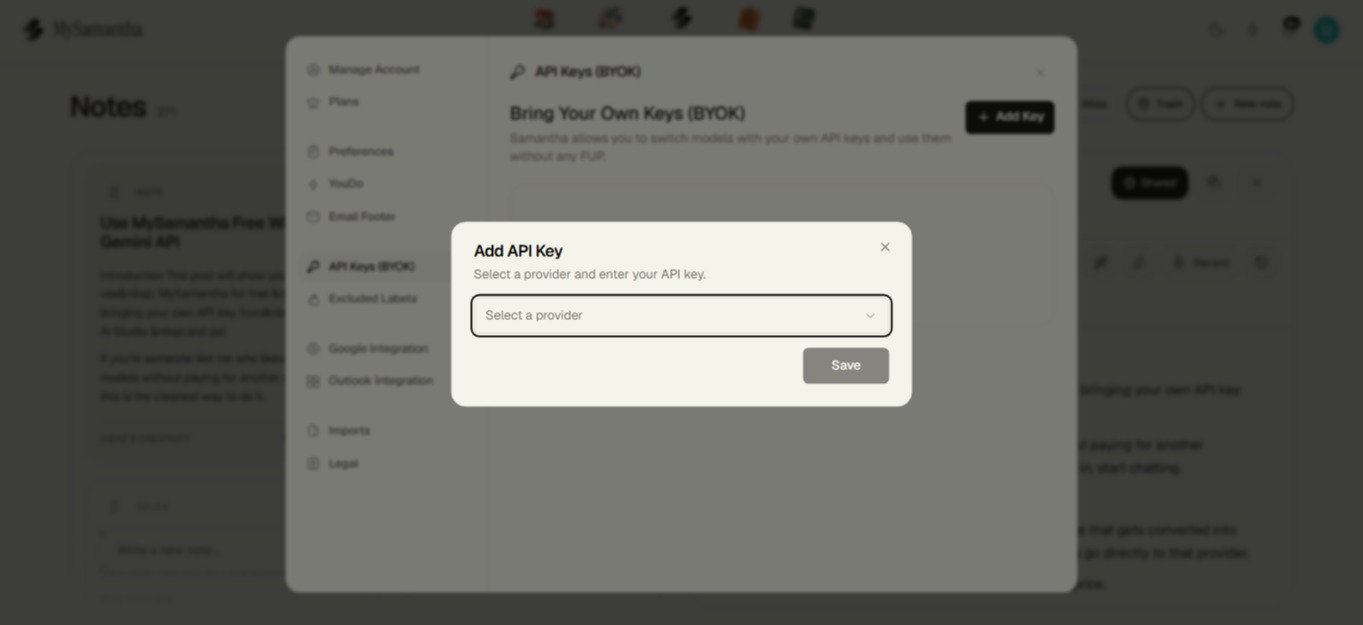
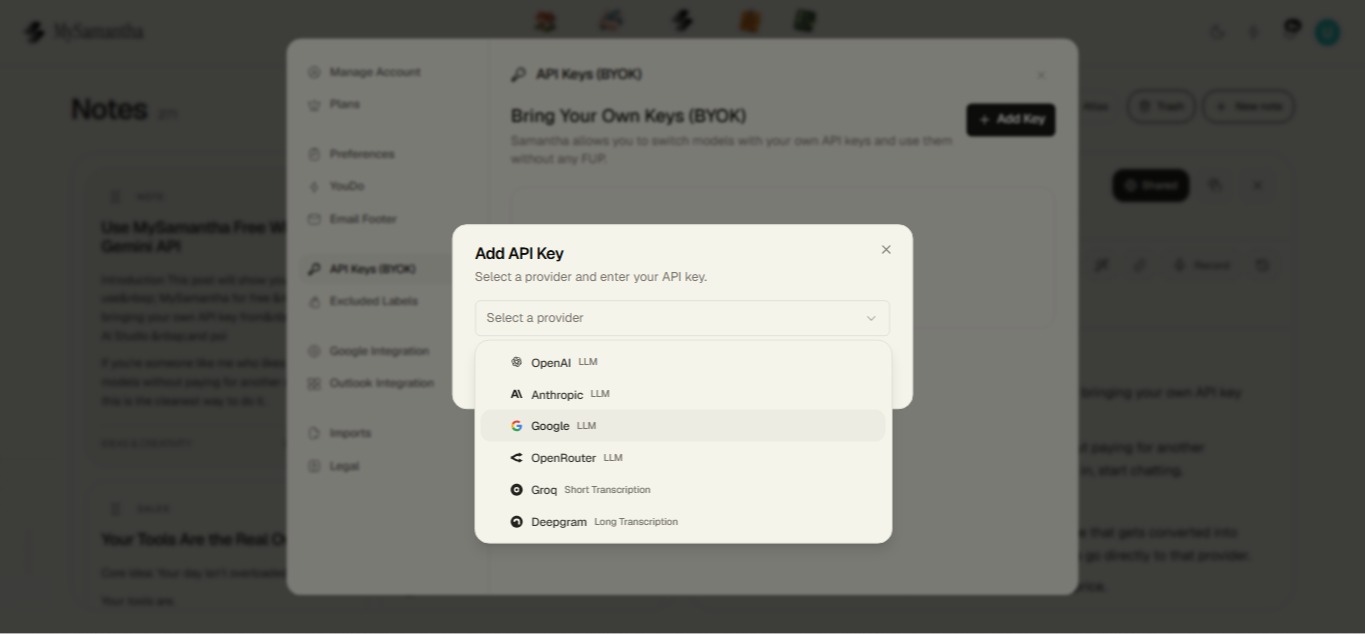
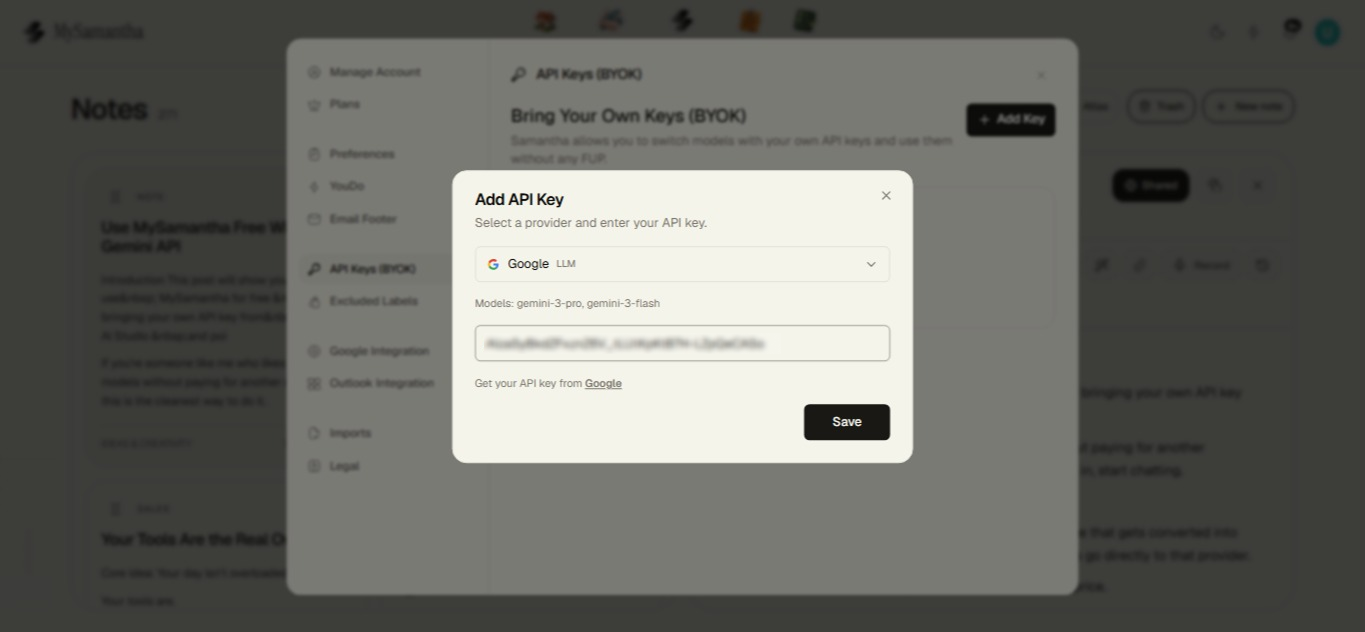
Your key is in. Now let's actually use it.
Step 4: Pick Google and chat
Head over to Samantha in the top nav and start a new chat.
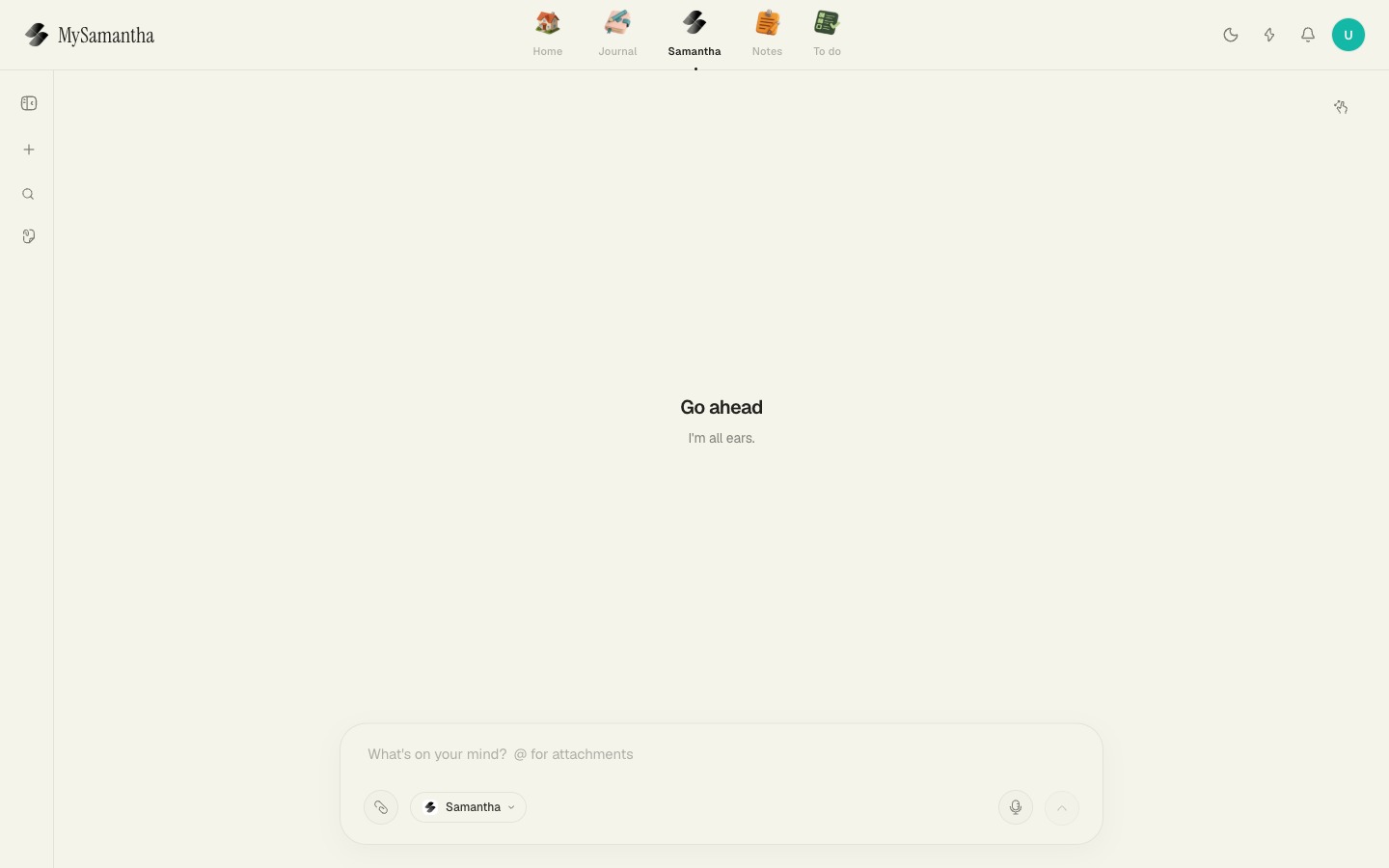
Click the Samantha model pill at the bottom. You'll see the full model list grouped by provider. Under Google, you'll see Gemini 3 Pro and Gemini 3 Flash.
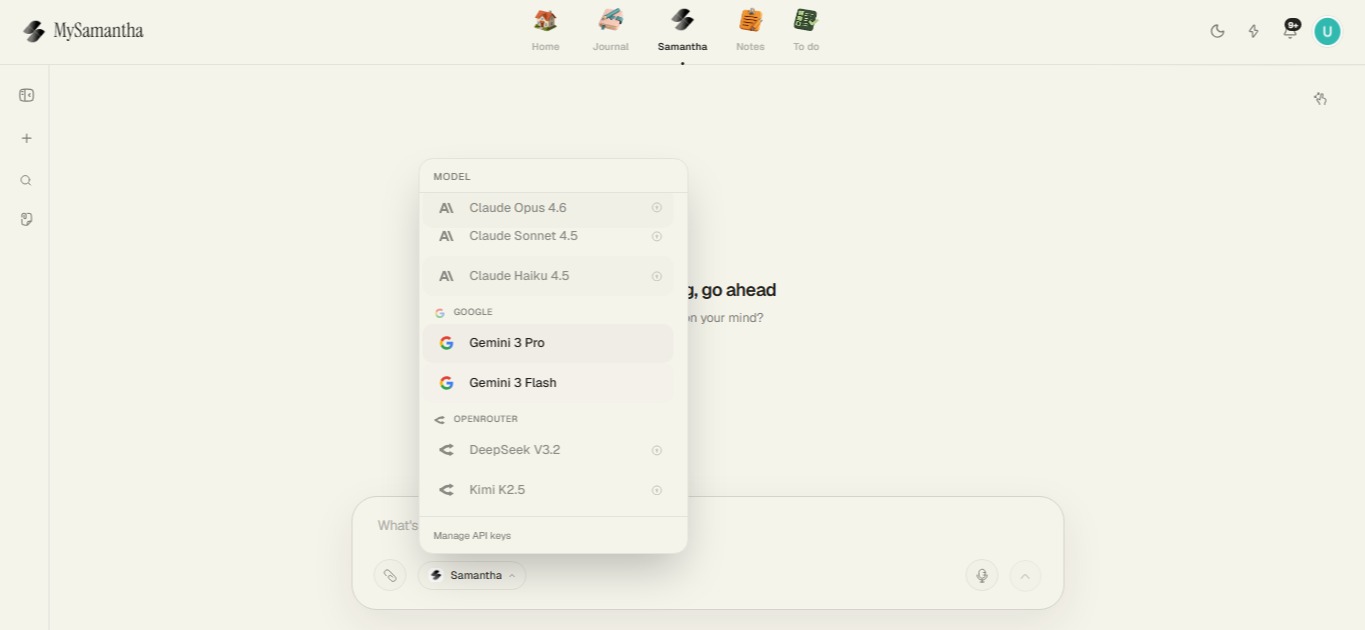
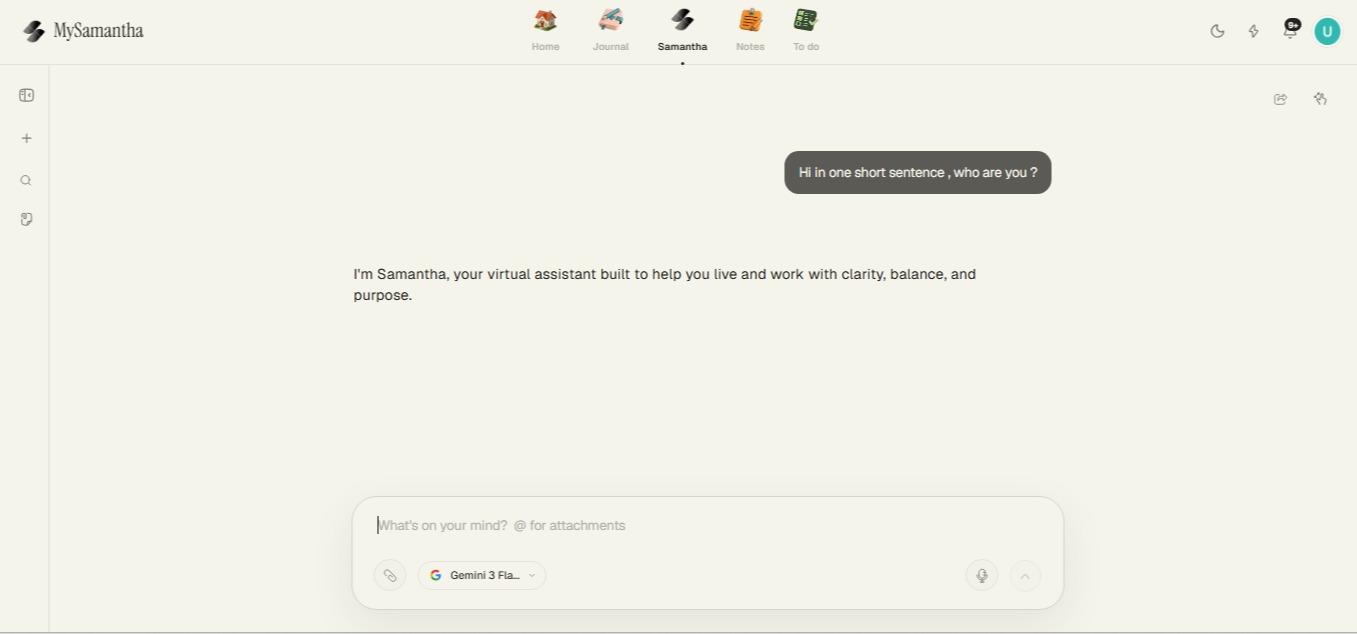
Switch the model on the next message and you're talking to a completely different model same context, same chat. If you stick to the free tier on Google AI Studio you can do this without spending anything.
So is that it? Yes. One key, free models, swap whenever.
Your Google AI Studio key is tied to a project, so if you don't see one yet, just create or import one first.
BYOK isn't just for Assistant. You can use it for transcription too.
If you want to set that up, go to Deepgram and sign up.
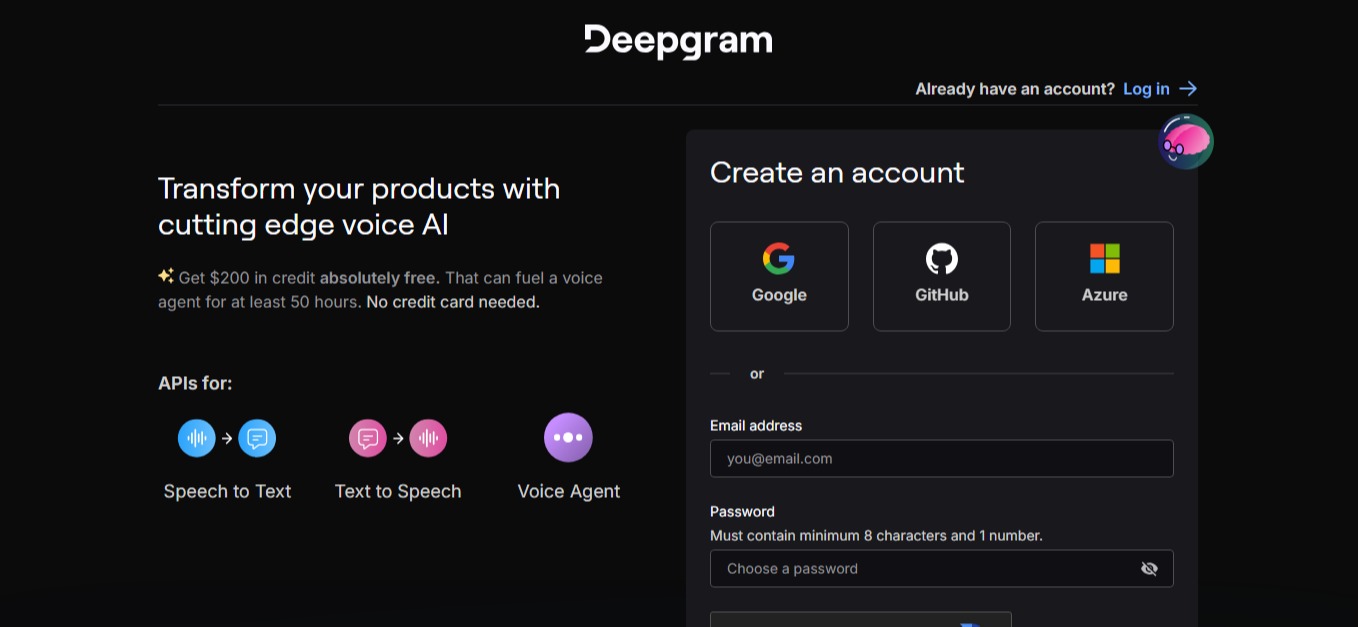
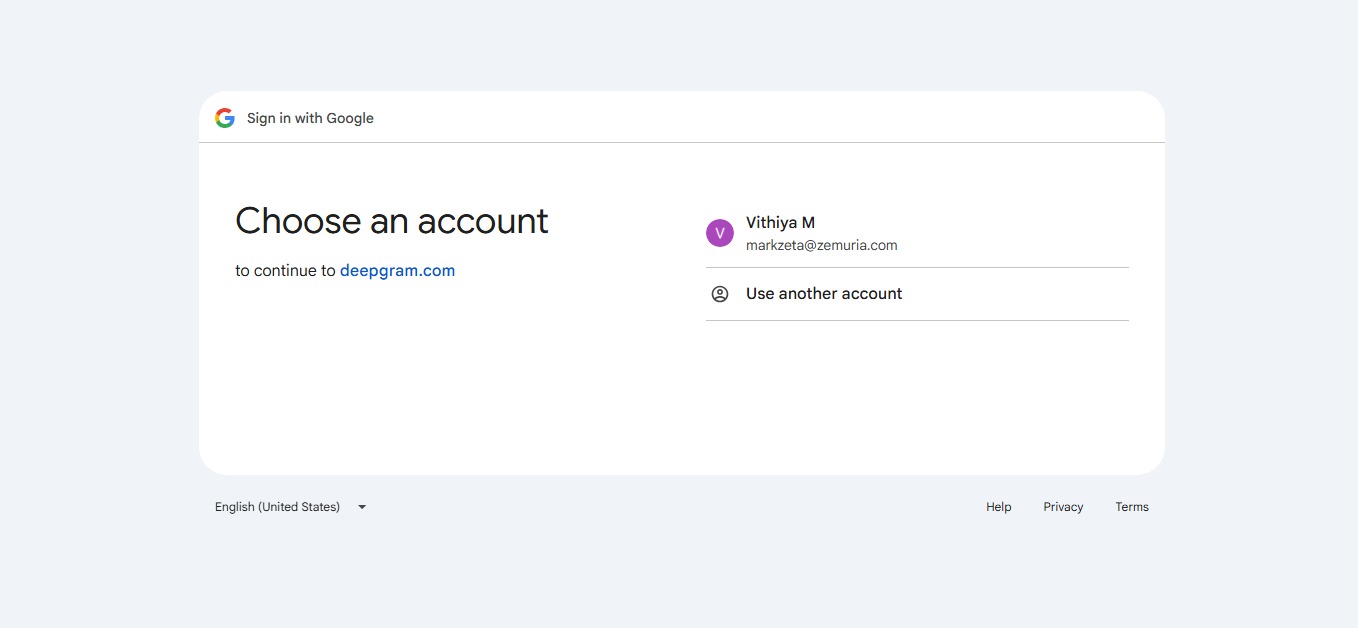
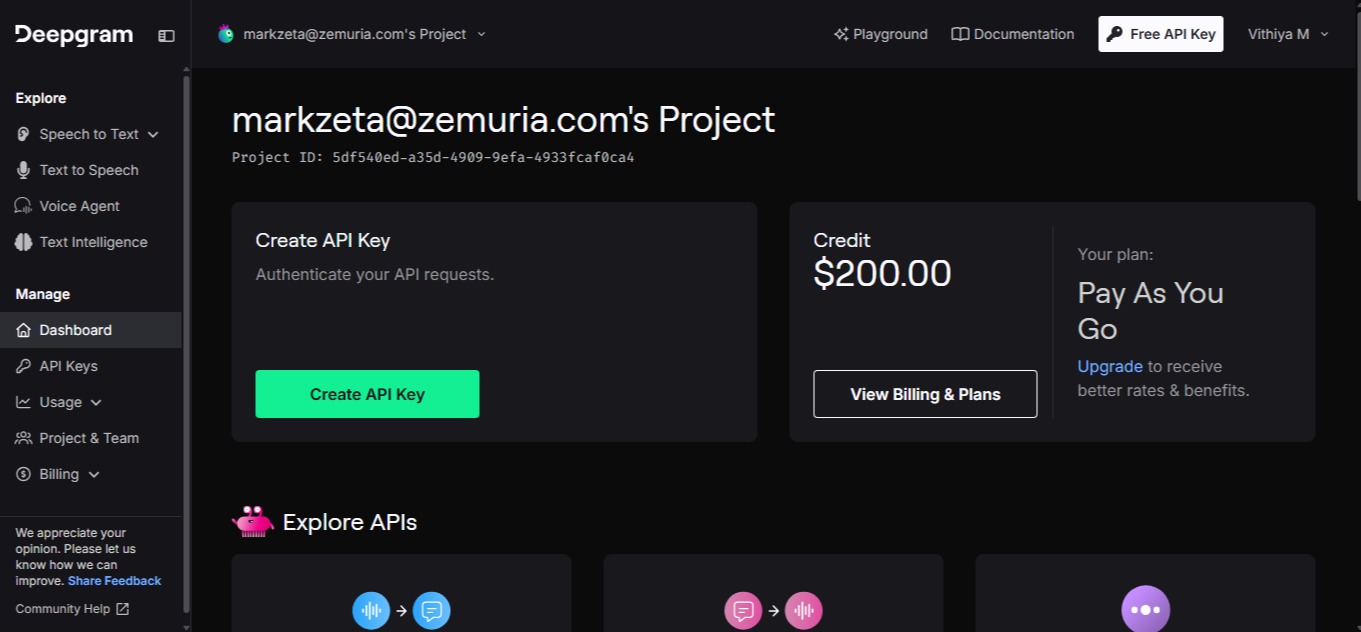
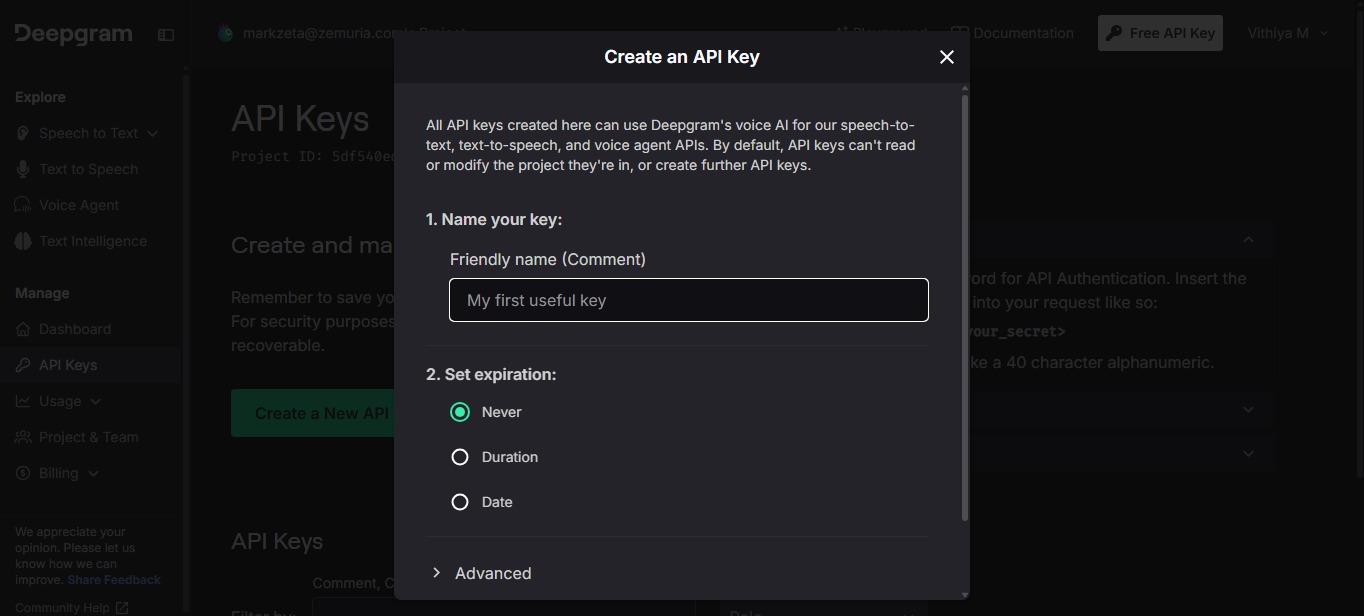
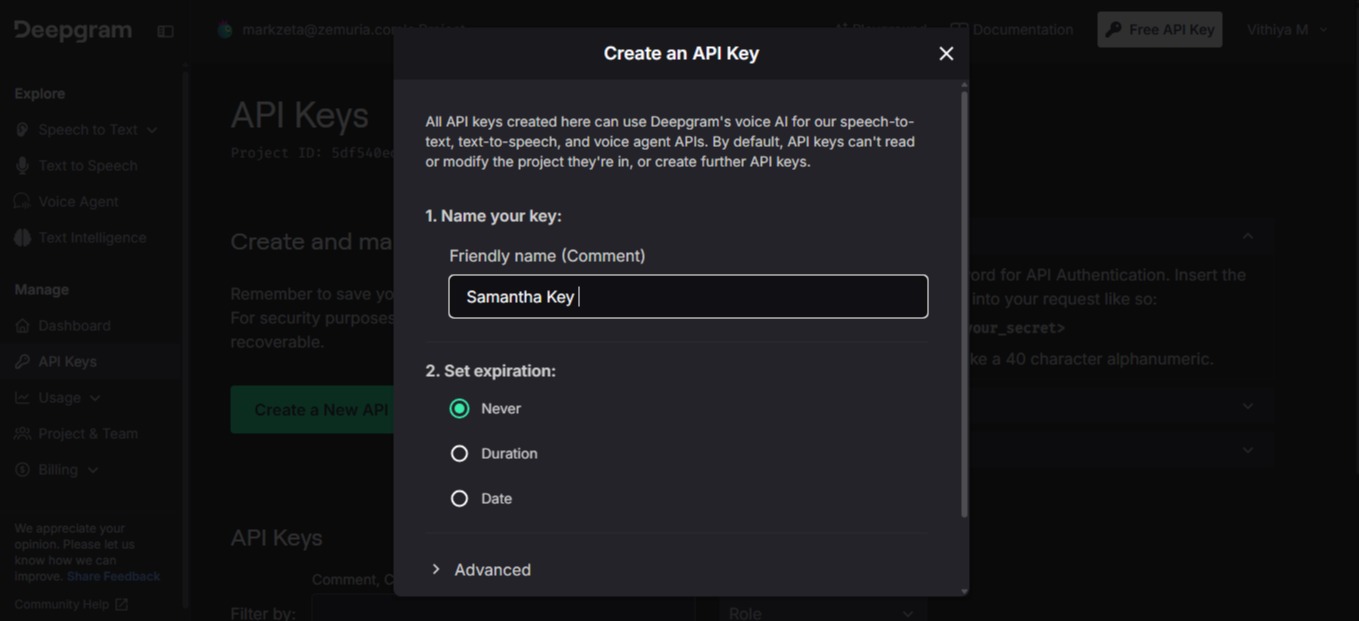
Create an API key, you won't see it again so paste it somewhere safe for the next step.
Then come back to MySamantha and add it under Settings → API Keys (BYOK).
Select provider Deepgram.
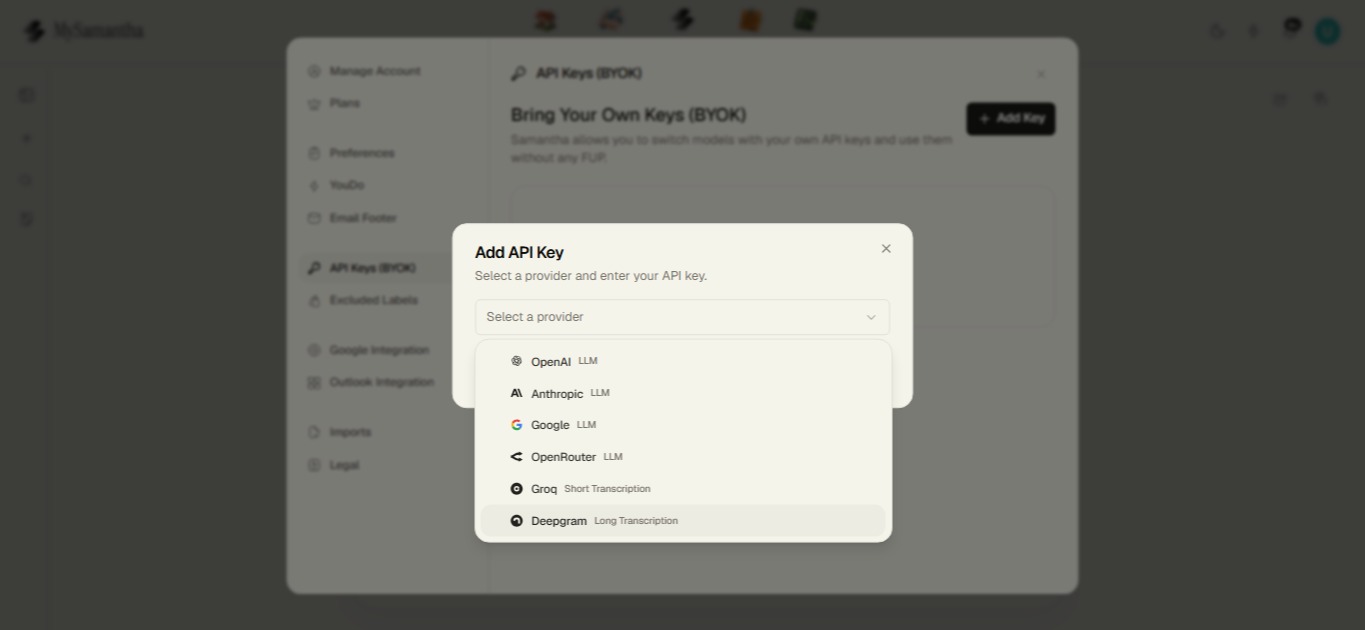
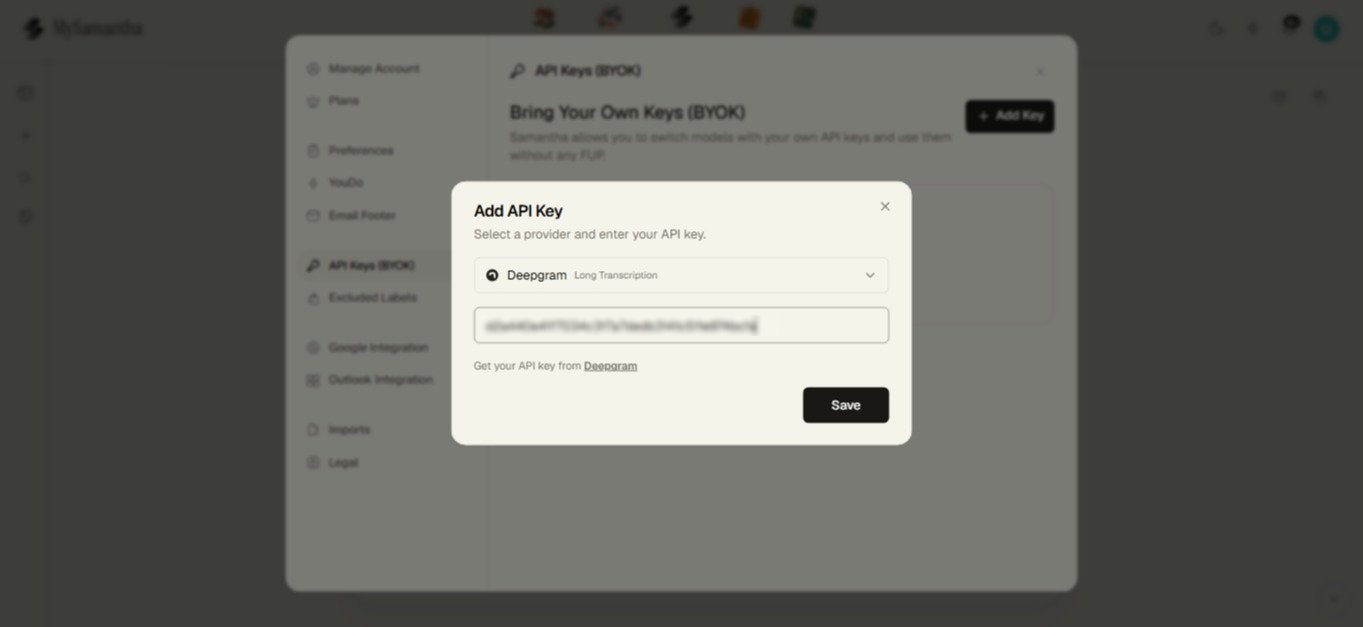
Once that's done, go to Settings → Preferences and turn on Use long transcription key for short transcription too.
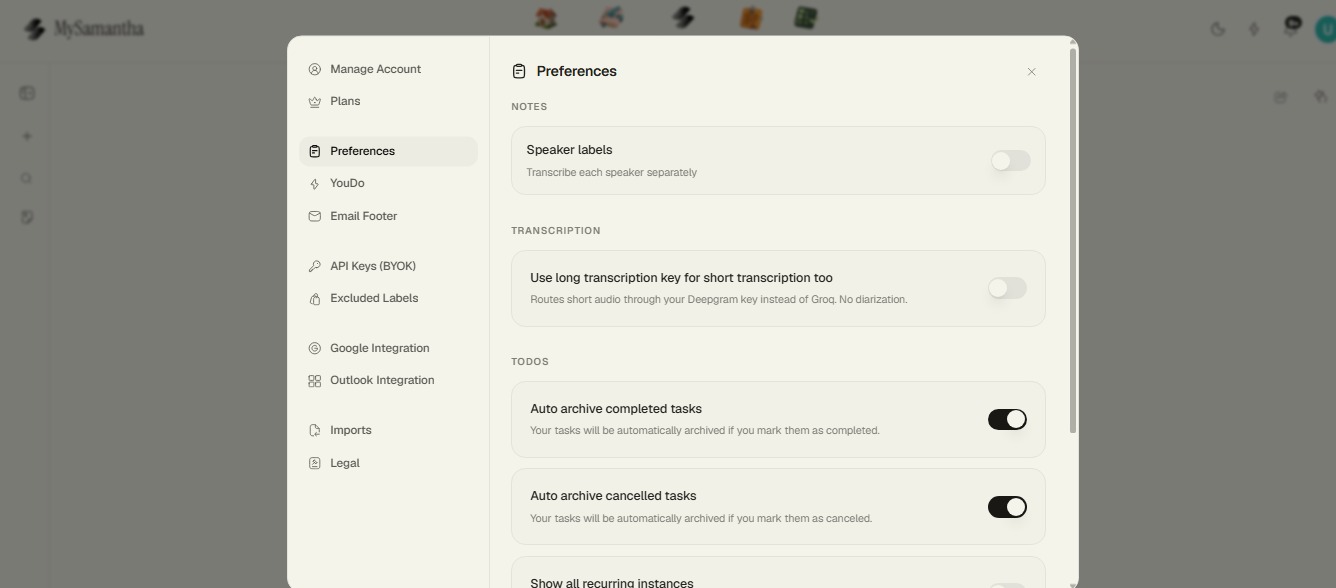
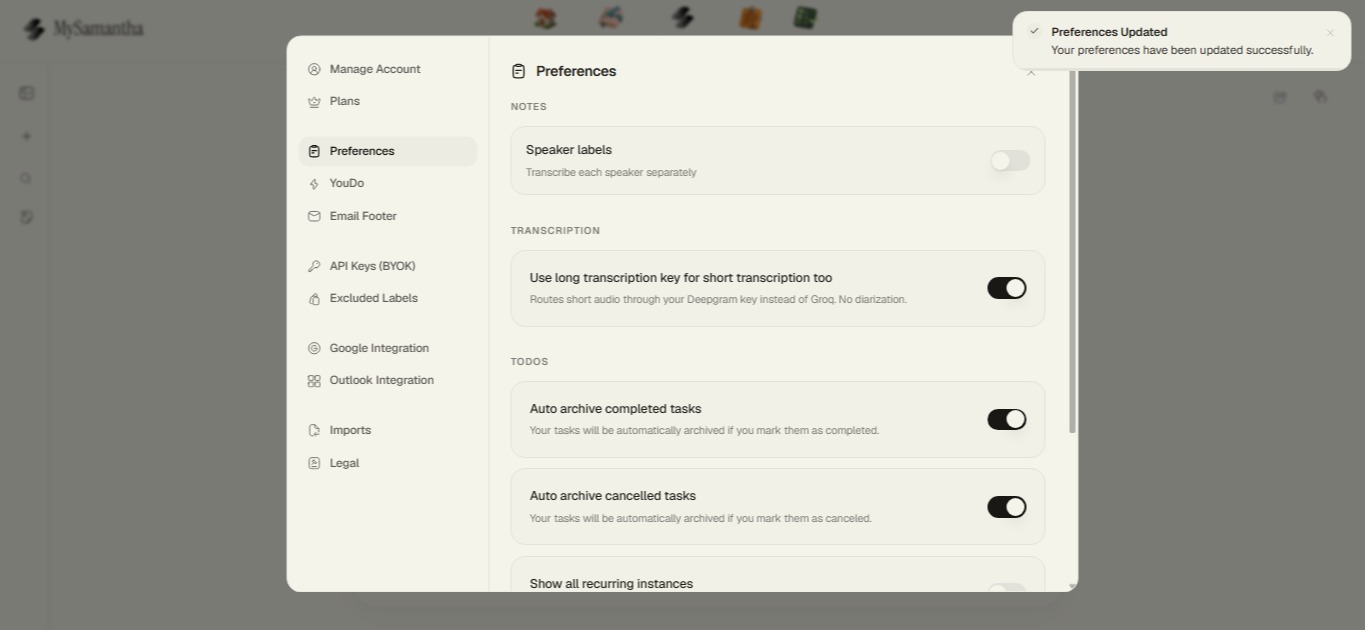
So is that it for Deepgram? Yes. Add the key, turn on the preference, and you're done.
Your Deepgram key handles transcription, and if you enable Use long transcription key for short transcription too, Samantha will use it for short audio as well.
So that's the setup. Bring your own keys, plug them into Samantha, and use the models and transcription providers you actually want.
If you like having more control without paying for another full subscription, BYOK is the cleanest way to do it. One app, your keys, your usage, your choice.
Note: BYOK is only available for paid subscription and lifetime users only.
Why Your To DO List and Calendar Should Talk to Each Other
Learn how connecting your to-do list and calendar can help you plan realistically, prioritize tasks, manage your time, and avoid overloaded schedules.


The Best Way to Manage Follow Ups After Meetings
Learn how to manage meeting follow-ups with clear actions, owners, deadlines, and context so your team can maintain momentum and turn decisions into results.


How to Turn Emails Into Tasks Without Losing Context
Learn how to turn emails into clear tasks while keeping important context, deadlines, and follow-ups connected so you can stay organized and focused.


Picking the Right Fitness Routine Is Harder Than It Sounds
Learn how to choose a fitness routine that fits your goals, schedule, personality, and fitness level so you can stay consistent and enjoy exercise.


Workflow Management: How to Manage the Team on Updates
Learn how workflow management helps teams improve visibility, clarify ownership, reduce unnecessary updates, manage delays, and work more efficiently.


How to Stop Doomscrolling: The Definitive Guide to Breaking the Habit
Learn how to stop doomscrolling by identifying triggers, adding friction, replacing endless scrolling with finite activities, and protecting your mornings and bedtime.


Make MySamantha yours.
Start with Notes, Tasks and Journal. Connect your email and calendar when you're ready. Invite Samantha in when you want help. Use as much, or as little, as you need.